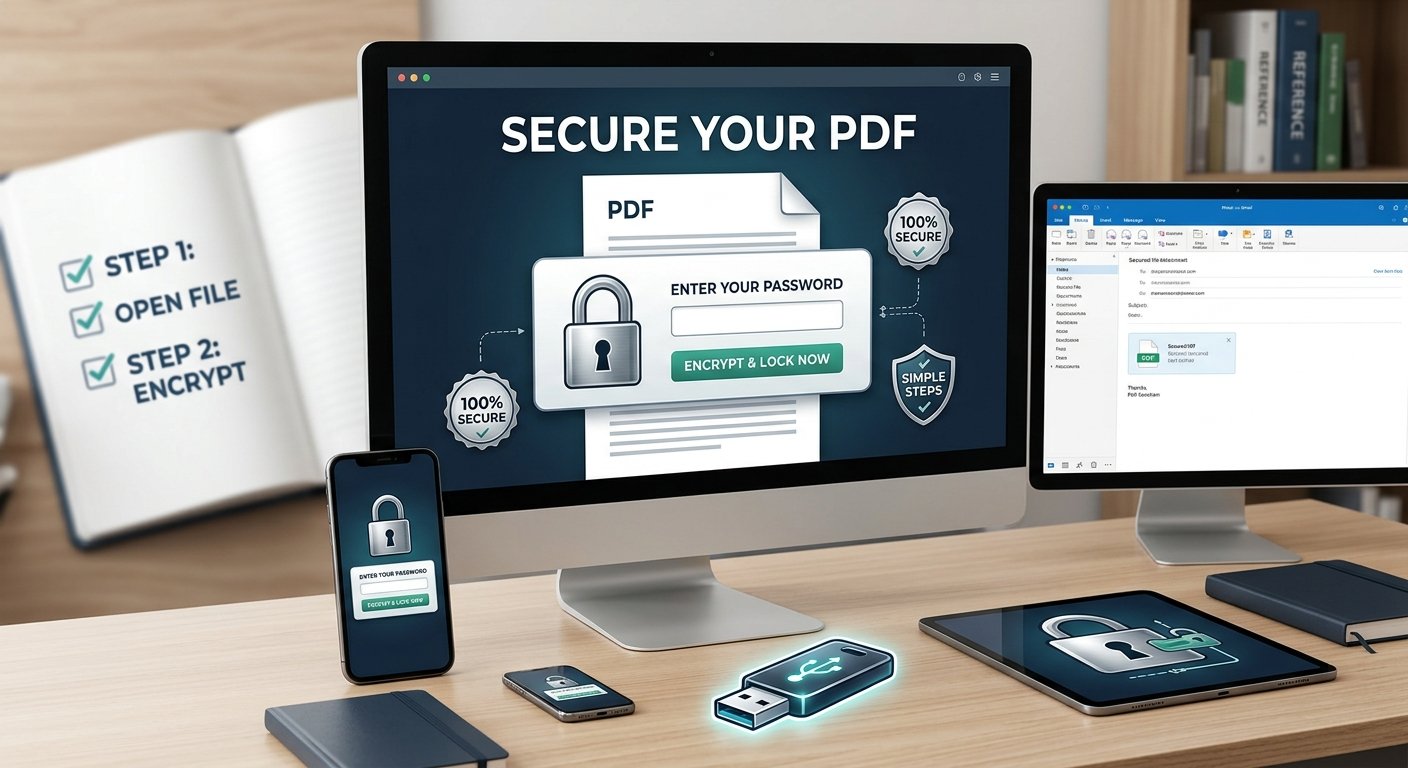
Securing your important files is necessary when sharing personal or business documents online, which is why learning how to password protect a PDF is a key skill for everyone. Standard PDF files are easy to open, read, and share, leaving your private information vulnerable if sent via email or uploaded to shared cloud drives.
Adding password protection encrypts your content so that only people with the correct password can view or print it. In this guide, you will learn the simplest ways to lock your files using built-in computer tools, free online software, and mobile apps without paying expensive fees.
Why Encrypting Your Documents Matters
Locking your PDF files provides several security layers:
-
Prevents Unauthorized Viewing: Keeps private records, tax forms, and medical reports safe from eyes other than the intended receiver.
-
Stops Unwanted Editing: Restricts users from copying text, editing data, or modifying sensitive contract details.
-
Controls Printing Rights: Allows you to block users from printing hard copies of confidential files.
How to Password Protect a PDF on Windows and Mac
You do not need to purchase extra software to secure your files. Both major operating systems offer native solutions:
-
On Microsoft Windows (Using Microsoft Word):
-
Open your document in Microsoft Word.
-
Click File > Info > Protect Document.
-
Select Encrypt with Password, type a strong password, and click OK.
-
Go to File > Save As and choose PDF (*.pdf) as the file type.
-
-
On macOS (Using Preview):
-
Open your PDF file in the default Preview app.
-
Click File in the top menu bar, then click Export.
-
Check the Encrypt box at the bottom.
-
Type your password, verify it, and click Save.
-
How to Password Protect a PDF Online for Free
If you are using a browser or Chromebook, you can lock files in seconds using web-based tools:
-
Visit a trusted online PDF utility (such as Adobe Acrobat Online, Smallpdf, or iLovePDF).
-
Upload the PDF file you want to protect.
-
Type a secure password that combines letters, numbers, and symbols.
-
Click Protect PDF or Encrypt File.
-
Download your newly locked PDF file directly to your device.
Frequently Asked Questions (FAQs)
Q1: Can I remove the password from a PDF later?
Yes. If you know the original password, you can open the file, go to your security settings, and remove the password requirement.
Q2: What happens if I forget the password to my locked PDF?
Because strong PDF encryption scrambles the data, there is no easy “forgot password” option. Keep a backup copy of your password in a safe manager.
Q3: Are free online PDF lockers safe to use?
Most reputable online tools use secure connections (HTTPS) and automatically delete your uploaded files from their servers after an hour.
Q4: Can I password protect a PDF on my smartphone?
Yes. iPhones can lock PDFs using the Files app options, while Android users can use free apps like PDF24 or Adobe Acrobat Reader.
Conclusion
Keeping your personal information safe takes only a few simple steps, and knowing how to password protect a PDF ensures your private files remain secure wherever you send them. By using free built-in system settings on your computer or quick online tools, you can encrypt files instantly without spending extra money. Always remember to store your passwords safely, select strong letter-number combinations, and test your locked files before sending them to clients or family!